Best Of Category Vote template
The Best Of Category Vote Contest Template is designed for “Best Of” contests and works well for campaigns with multiple categories or subcategories for entry and voting. This template features Smart Containers, integrating the template wizard into the main container for a streamlined setup and robust design.
Overview
You can find the template here or preview it here.
This guide will cover template-specific features that are not included in our basic templates. If you need help adding widgets, editing forms, or styling your campaign, check out the Building Campaigns section of our help docs.
Settings
Click the blue Settings button in the Category Assistant Container to open the template settings.
Checklist
The Checklist alerts you to any missing elements that may prevent the template from functioning. A red exclamation mark indicates an issue, with a message explaining the error.
Menu
Use the Menu section to add categories and subcategories directly to the text box:
- Add categories: Type directly or paste from an external document.
- Add subcategories: Indent to create levels. You can add unlimited levels by indenting accordingly.
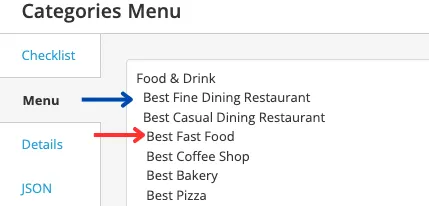
At the bottom, you can copy all list items to your clipboard by clicking on Copy categories to clipboard.
Details
Edit category images and descriptions in the Details section:
- Click the pencil icon to edit a category.
- Add a category description to the text box.
- Add an image by clicking on the plus sign icon to open the Media Library to select an image.
- Use the Next/Previous buttons to navigate between categories.
JSON
For advanced users, categories can be edited via JSON. However, support for custom code is limited.
Edit the category field
Copy and paste the list of categories into the Category Field Widget. If not, you will see an error message in the Checklist stating that the Category Field does not have the correct categories added.
Do not remove the Category Field from the form, it is needed for this campaign to function.
Editing the rest of the template
Modify the campaign as usual. The Entry Display Widget automatically updates based on the selected category—no extra widgets needed!
Related resources
How to Test a Campaign (Video)
Running a Giveaway? Why “No Purchase Necessary” is Necessary (Blog Post)
How to Set Up Voting (Help Doc)
Was this helpful?
Thanks — that helps us decide what to fix next.
Sorry this missed. Tell us what you needed and we'll get you an answer — and fix the page.