Upload Field
The Upload Field is a standard field that allows entrants to upload various types of media, including images, videos, and documents. This field supports multiple uploads (depending on your plan allowance) and enables importing content from social media platforms like Instagram, TikTok, YouTube, and Vimeo.
Getting there
- In the Campaign Builder, drag and drop the Field Widget into a Form Container.
- In the pop-up, select Upload from the Standard Field list.
- Click Next to proceed.
Field settings
Text
Assign any Label for your upload field in this section (for dropdown layouts only).
Validation
Select one of the following options:
- Always: Field is always mandatory.
- When Visible: Field is mandatory only when visible.
- Never: Field is not required.
Upload field requirements
- Maximum Attachments Allowed: Set the number of attachments an entrant can add per entry.
- Minimum Image Width: Define the minimum width (in pixels) to prevent low-quality uploads.
- Maximum File Size: Enter the maximum file size.
Note: Your plan level affects the maximum file size. Build - 120MB, Scale - 270MB, Max - 350MB, and Enterprise - 500MB
Error messages
Customize error messages by entering your desired text in the appropriate fields.
Content
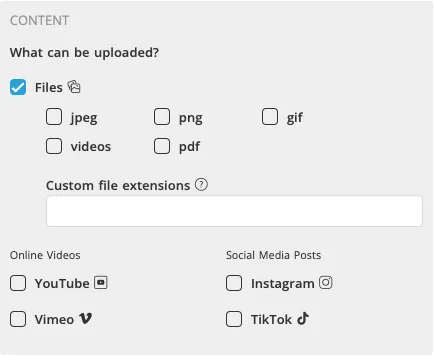
Define the types of media and upload options allowed for entrants in this section.
Supported file types
Entrants can upload files directly from their local storage drive. Supported file types include:
- Images:
.jpeg,.png,.gif - Videos: MP4, MPEG, WMV, MOV, and other common formats.
- Documents:
.pdf - Custom File Extensions: Add custom file types by entering the extension (e.g.,
.docx).
Note: Only video, photo, GIF, and PDF formats can be viewed in the Entries Manager. Other custom files can still be exported.
Online videos
Entrants can submit URLs for videos hosted on YouTube or Vimeo. This is ideal for large video files or Business Plan users.
Social media posts
Entrants can upload URLs for:
- Instagram posts/reels.
- TikTok videos.
The media and descriptions are automatically imported into the form.
Field points
Assign a point value to the field to award entrants additional points for uploading media.
Other
Instructions field
Add text to the Instructions field to display below the field when it is focused (selected).
CSS classes
Add custom CSS classes to the Extra CSS Classes field to style the field using the CSS Editor.
Visibility
Control field visibility using the Visibility section:
- Date and Time: Limit field visibility to a specific period.
- Builder Only: Limit visibility to the Campaign Builder.
- Country Restrictions: Restrict field visibility to specific countries.
Learn more about Widget Visibility.
Extras
Learn more about the Main Tag, CSS Classes, and Smart Labels settings in Widget Extras.
Upload field styling options
When the Widget is selected, you can customize the styling of the specific widget. Some of the options include changing the hover color, the maximum width of the widget, and upload field alignment. You will see the following areas of styling available in the Style Panel:
- Label
- Upload Controls
- Help Text
- Widget
Related resources
Was this helpful?
Thanks — that helps us decide what to fix next.
Sorry this missed. Tell us what you needed and we'll get you an answer — and fix the page.