Prohibit fraudulent and spam entries with the Fraud Filter feature
The Fraud Filter checks each new entry against patterns you write, such as email addresses, IP addresses or street addresses. When an entry matches, the filter can reject it, label it, hold it back from automatic approval, or make it lose Instant Win. Set it up in your Form Container settings, on the Fraud Filters tab.
The Fraud Filter belongs to the Form Container, so each form that collects entries has its own patterns, fields and actions.
Before you start
- The Fraud Filter is included in the Scale plan and higher. See the pricing page to compare plans.
- A pattern matches the whole value in a field. Write
*gmail.comto catch every Gmail address;gmail.comon its own matches only that exact text. Capital and lowercase letters are treated the same. - Start with a label while you test. A rejected entry is discarded and can't be recovered, so choose Label Entry first, check the labelled entries in the Entries Manager, and switch to Reject Entry once the patterns catch what you expect.
Set up the Fraud Filter
- Open your campaign in the Campaign Builder.
- Click the gear icon on your Form Container to open its settings, then select the Fraud Filters tab.
- Add your patterns.
- Choose the fields to search.
- Choose the actions.
- Type a sample into Enter sample text to test your patterns. The result reads Matches in green if the Fraud Filter would catch it, or No Match in red. Then save.
Patterns
Add specific email addresses, IP addresses, physical addresses, or other patterns, with one pattern per line.
Use ? to match any single character and * to match any number of characters. For example:
*@gmail.commatches any Gmail address.??? Main Streetmatches any 3-digit address on Main Street. A 4-digit address isn't matched.name@yahoo.commatches only entries with this email address.
Advanced: you can write regular expressions by starting and ending your pattern with a forward slash.
Choose fields to search
The Fraud Filter searches for your patterns in the selected fields:
- Address 1 (Address 2 is included with this choice)
- Email Address
- Phone
Tick the box next to each field you want to search. You can select as many as you like. Custom fields aren't searched, so aim your patterns at one of the fields above.
The IP Address is searched automatically because ShortStack collects it with every entry. To see full IP addresses in your entries, turn on collect entry full IP address in the Advanced Form Container settings.
Choose actions to take
Choose what happens when an entry matches. You can combine actions, except that Reject Entry replaces the others.
| Action | What it does | Use it when |
|---|---|---|
| Reject Entry | Discards the entry attempt, so it never appears in your list. The other actions apply to saved entries, so they're unavailable with this one. | You're sure the pattern only catches spam. |
| Label Entry | Saves the entry with a label you enter, so you can filter it in the Entries Manager. | You're testing a pattern, or you want to review matches before deciding. |
| Force Instant Win Loss | If Instant Win is on, an entry that matches always loses. | You'd like to accept the entry as a lead but keep it out of prize draws. |
| Do Not Auto Approve Entry | If auto-approval is on, a matching entry waits for your review instead of being approved automatically. | You publish entries in a gallery and want to check suspicious ones first. |
Review labelled entries
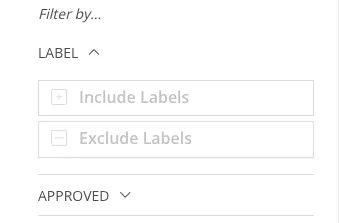
After you've labelled suspicious entries, open the Entries Manager and type that label into the Exclude Labels box in the Filter by panel. Do the same before you pick winners, so the Random Entry Picker draws only from the entries you've kept.
If something goes wrong
| What you see | What to do |
|---|---|
| Entries you expected the filter to catch are in your list | Check that the pattern matches the whole value. Add * at the start or end, such as *gmail.com. Then check that the box for the field you want to search is ticked. |
| An entry you expect to see is missing from your list | If Reject Entry is on, a matching entry is discarded when it is submitted. Switch to Label Entry to keep matches so you can review them. |
| Your pattern is aimed at a custom field | The Fraud Filter searches Address 1, Email Address, Phone and IP Address. Use a pattern for one of those, or review the custom field in the Entries Manager. |
FAQs
Why isn't my Fraud Filter pattern catching entries?
A pattern has to match the whole value in the field. A pattern of gmail.com matches only a value that is exactly gmail.com, so to catch every Gmail address, use *gmail.com. Also check that the box for the field you want to search is ticked.
Is the Fraud Filter case-sensitive?
Capital and lowercase letters are treated the same, so *@GMAIL.com and *@gmail.com catch the same entries.
Can I get back an entry that the Fraud Filter rejected?
A rejected entry is discarded when it is submitted, so it can't be recovered, and it doesn't appear in your Entries Manager or in exports. To keep a record, choose Label Entry instead, then exclude that label when you review entries or pick winners.
Which plan includes the Fraud Filter?
The Scale plan and higher. You can compare plans on the pricing page.
Related resources
7 Ways to Protect Your Contest From Entry & Voter Fraud (Blog)
Was this helpful?
Thanks — that helps us decide what to fix next.
Sorry this missed. Tell us what you needed and we'll get you an answer — and fix the page.