How to create Google reCAPTCHA keys
ShortStack requires you to supply your own Google reCAPTCHA API keys before you can enable bot prevention on the Entry Display and Form Container widgets. Create them in Google's reCAPTCHA Admin Console — choose the Score based (v3) type and enter the domains your campaign will live on — then add the keys to your campaign.
Before you start
- reCAPTCHA is included in the Scale plan and higher.
- You need a Google account. You create the keys in Google's reCAPTCHA Admin Console and paste them into ShortStack.
- Keys work on the Form Container Widget and the Entry Display Widget. Add them once in Campaign Settings, then turn reCAPTCHA on in each widget. See Restricting entries using reCAPTCHA.
Create Google reCAPTCHA keys
-
Log in to your Google account and go to the reCAPTCHA Admin Console.
-
Label: Enter a name to identify your site (e.g., "My Holiday Campaign").
-
reCAPTCHA type: Select Score based (v3).
-
Domains: Enter the domain name(s) where your campaign will live, then click the add (plus) icon.
-
ShortStack-Provided Domain: If you are publishing to a ShortStack URL, enter the base domain:
cmpgn.page,lndg.page, orshortstack.page. -
Custom Domain: If you are using a custom domain (e.g.,
mybrand.com), enter that domain here. -
Embed: If you are embedding the campaign on your website, enter the domain that is used for the campaign URL. This is likely one of ShortStack's domains:
cmpgn.page,lndg.page, orshortstack.page. To check, verify the publication settings in the Publication Manager.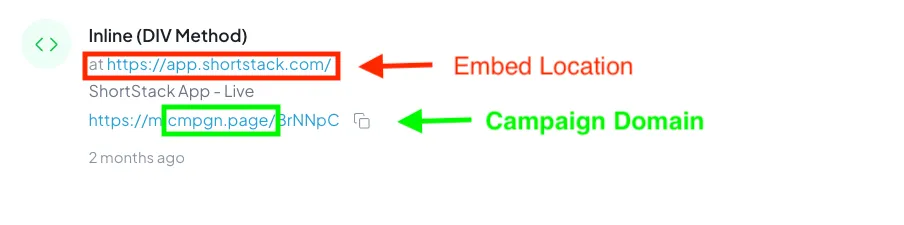
-
-
If you are new to the Google Cloud console, accept the Terms of Service.
-
Click Submit.
Note: If you are new to the Google Cloud console, a project and the necessary APIs will be created automatically. For additional support click here.
Disable domain checking (Optional)
If you plan to publish to multiple domains without manually updating your key settings each time, you can disable domain checking.
-
Find the domain verification setting in your Google dashboard:
- reCAPTCHA Admin Console: Uncheck the box for Verify the origin of reCAPTCHA solutions.
- Google Cloud Console: Check the box for Disable domain verification.
-
Save your changes.
Security Warning: Disabling domain checking poses a security risk. Google warns: "Turning off this protection by itself poses a large security risk - your key could be taken and used by anyone... For this reason, when verifying a solution, you are required to check the hostname/package field and reject any solutions that are coming from unexpected sources." Learn more.
Add keys to ShortStack
- Open the campaign you want to protect in the Campaign Builder.
- Click the Campaign Settings icon (gear icon).
- Select the Security tab.
- Click on the Choose Profile button.
- Click on the Add button located at the bottom right corner of the pop-up.
- Enter the Profile Name and Description.
- Copy and paste the Site Key and Secret Key provided by Google into their respective fields.
- Click Save.
Once the keys are attached, the Enable Google reCAPTCHA checkbox becomes available in your Form Container and Entry Display Widget settings.
Edit keys in ShortStack
You can update or remove your reCAPTCHA keys using the Entry Profiles Manager.
- Open the Entry Profiles Manager.
- Use the filter menu to select Integration.
- Locate the integration labeled Google reCAPTCHA Keys.
- Click the Edit icon (pencil) to update the keys.
- To delete a key, select the integration and click Delete in the top menu.
If something goes wrong
| What you see | What to do |
|---|---|
| The Enable Google reCAPTCHA checkbox is greyed out | Keys need to be attached to the campaign first. Follow Add keys to ShortStack. If the campaign was set up with keys from before profiles existed, add them again with Choose Profile and Add so the checkbox becomes available. |
| Entrants can't submit the form after you turn reCAPTCHA on | The keys may be missing or entered incorrectly. Open Campaign Settings and Security, and enter the Site Key and Secret Key from Google again. |
Entrants see We could not verify that you are human. Please refresh the page and try again. | Google scored the entry below your Sensitivity Level. Move the slider left to make reCAPTCHA more lenient. See Restricting entries using reCAPTCHA. |
| reCAPTCHA is switched off on a copy of a campaign | When the original campaign's keys can't be found, ShortStack switches reCAPTCHA off on the copy. Add keys in the copy's Campaign Settings and Security, then turn reCAPTCHA on again in each widget. |
FAQs
Why is ShortStack changing how Google reCAPTCHA works?
Google recently introduced new API fees for reCAPTCHA. These fees create a recurring cost for ShortStack. Rather than absorb that cost and raise plan prices for everyone, we’ve decided to change how reCAPTCHA is provided going forward. This allows us to keep ShortStack pricing stable while still giving you access to strong fraud protection tools.
Do I still have access to other fraud prevention tools?
Yes.
ShortStack continues to provide multiple fraud protection options, including:
These tools remain fully supported and available to all customers
Will ShortStack charge a fee for this change?
No.
ShortStack is not adding any new fees related to this change, and plan pricing remains the same.
Does it cost additional money to get a Google reCAPTCHA key?
Google provides 10,000 free reCAPTCHA uses per month. The majority of ShortStack customers fall well within this limit. If your usage exceeds 10,000 monthly interactions, Google may charge according to their pricing model.
You can review Google’s current pricing here. Any costs billed by Google are handled directly between you and Google.
I already have a form or campaign using Google reCAPTCHA. Will it still work?
Yes.
All existing published campaigns that already use Google reCAPTCHA will continue to function as they do today. Only new campaigns published starting the week of 1/26/26 will require you to provide your own Google reCAPTCHA key.
Related resources
Campaign Best Practices (Help Doc)
7 Essential Security Features to Prevent Cheating (Blog)
Restricting Entries Using reCAPTCHA (Help Doc)
Was this helpful?
Thanks — that helps us decide what to fix next.
Sorry this missed. Tell us what you needed and we'll get you an answer — and fix the page.