Share Widget
The Share Widget adds social icons to your campaign, making it easy for your visitors to share a link to your campaign in just a couple of clicks.
Overview
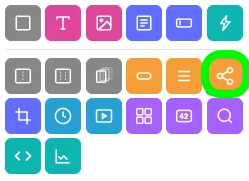
Adding the Share Widget
To add the Share Widget to your campaign:
- Click the Share Widget icon in the Add Widgets Panel, or
- Drag the icon into your preview area.
Widget settings
The widget settings pop-up is where you'll make any necessary changes to your Share Widget.
Renaming the widget
To change the widget name, click the pencil icon in the top-left corner (next to the name) and type your new name.
CSS ID
The CSS ID (starting with a #) of your widget is displayed in the top-right corner of the pop-up.
Customization
Navigate through each item in the menu on the left to fully customize your Share Widget. Use the Back and Next buttons at the bottom of the pop-up to move between sections.
When you've finished making changes, click the blue Save and Exit button.
Share platforms
The Share Platforms section is where most of the Share Widget setup happens.
Customizing social channels
- Adjust Order: Click and drag the reorder icon to change the display order of the social media channels.
- Enable/Disable Channels: Select or deselect channels by checking/unchecking the box next to their name. The currently selected channel will be highlighted.
- Customize Settings: Adjust the title, description, and image for each social channel on the right. A preview of the share settings will be displayed.
System share
In addition to the social channels above, you can enable an option that opens the visitor's own device share menu. This lets entrants share directly to any app installed on their device, with the title, description, and image filled in automatically. This is useful for applications with unreliable sharing, such as Facebook, or for platforms we don't natively support.
About email and SMS sharing
When Email and/or Text Sharing is enabled, the entrant’s preferred email or SMS platform is used. These messages are not sent through ShortStack but are similar to sharing a news article or social media post. A predetermined text about the campaign will be displayed in the email or text body. Entrants can choose their recipients manually.
Where’s Instagram?
Instagram does not support the traditional sharing of external content. However, here are some alternative solutions:
- Encourage Sharing via Stories:
Ask participants to share the campaign URL through Instagram Stories or create your own post/Reel and encourage followers to share it. - Use Hashtags:
Utilize campaign-specific hashtags to increase visibility. You can even import followers' posts from Instagram using specific hashtags. Learn more about Hashtag Feeds.
Share prompt
The Share Prompt section allows you to set up your call-to-action text.
Simply type your text into the Share Prompt (optional) field. This text will be displayed above the social icons in the Share Widget by default.
Visibility
Control when and where the widget appears using the Visibility section.
Options include:
- Setting specific dates and times for visibility.
- Displaying the widget only in the Builder.
- Limiting visibility to certain countries.
Learn more about Widget Visibility.
Extras
Learn about the Main Tag, CSS Classes, and Smart Labels settings here.
Share styling options
When the Widget is selected, you can customize the styling of the specific widget. Some of the options include changing the share icons color, the maximum width of the widget, and widget alignment. You will see the following areas of styling available in the Style Panel:
- General
- Prompt
- Buttons
- Widget
Related resources
Can I Reward Participants for Sharing My Contest on Social Media? (Blog)
Was this helpful?
Thanks — that helps us decide what to fix next.
Sorry this missed. Tell us what you needed and we'll get you an answer — and fix the page.