Fortune Wheel template
The Fortune Wheel Template allows entrants to test their luck and win a prize on the wheel. This campaign is a great option for live events, in-store promotions, and as an exit-intent pop-up on your website.
Overview
You can find the template here or preview it here.
This guide will cover template-specific features that are not included in our basic templates. If you need help adding widgets, editing forms, or styling your campaign, check out the Building Campaigns section of our help docs.
Enable Instant Win
To get started with customizing this campaign, you need to enable Instant Win first.
- Open the Form Container settings.
- Click on the Instant Win tab.
- Click on the text "Instant win is disabled" to enable Instant Win and edit the settings in the pop-up.
- Enable Distribute Unique Prizes and connect an Advanced Code List (see below).
For additional Instant Win settings and configurations, visit our Instant Win Help Doc.
Upload an advanced Code List
The Fortune Wheel Template uses the Advanced Code List, which consists of four columns labeled:
- code
- category
- image_url
- details
You can download the template while attaching your code list to the Instant Win, or you can download it here.
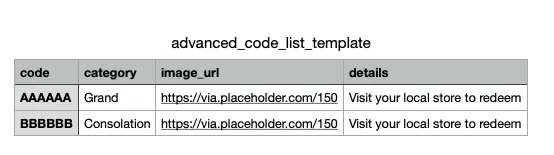
Note: You do not need to use every column, but all four columns must be present for this template to work correctly.
Configure template settings
Click the Settings button in the Category Assistant Container to open the template settings.
Checklist
The Checklist alerts you to any missing elements that may prevent the template from functioning. A red exclamation mark indicates an issue and a message explaining the error follows.
Sections
To edit the appearance of individual wheel sections, click the pencil icon on the right side. To rearrange their order, drag and drop them using the three-line (≡) icon on the left side.
When editing a section, you can customize the following:
- Prize Label
- Text Color
- Background Color - You can set a specific background color for each section or use the Section Color Generator (described below).
- Image
- Background Image - Overrides the background color if used.
Note: The Value field cannot be edited, as it is determined by the code list attached to your campaign.
Wheel
Wheel appearance
Customize the overall appearance of the wheel with the following settings:
- Wheel Height - The width scales proportionally to the height.
- Divider Color
- Background Image - For a fully customized wheel, upload a background image. This overrides all individual section backgrounds. Use an image of equal width and height to the wheel and center the first prize to the hub. Place subsequent prizes in clockwise order.
- Border Size and Color
Hub appearance
Adjust the size and color of the hub, or upload a custom hub image. If using an image, set the hub color to transparent.
Section color generator
The Section Color Generator helps you create a visually cohesive color scheme for your wheel. Start by selecting a base color in the Inspiration box, then choose a Color Scheme:
- Default - Evenly spaces hues around the 360° color wheel for a balanced palette.
- Monochromatic - Uses brightness and saturation variations of one hue for a subtle, unified look.
- Analogous - Hues adjacent to your base color for harmonious results.
- Complementary - Pairs opposing hues for strong contrast and visual impact.
- Triadic - Three evenly spaced hues for a dynamic, balanced design.
Adjust lightness and saturation as needed.
Click Use Inspiration to apply the selected color to the wheel sections, or choose Use Random Hue for a randomized color set.
Text appearance
Customize how the section text appears:
- Font Size
- Text Offset from Center
- Orientation – Choose Vertical or Horizontal
Behavior
Control how the wheel behaves when spun:
- Number of Rotations
- Spin Duration
- Spin Start and Stop – Adjust how fast the wheel starts and stops..
Wheel preview
Use the Preview area to see how your wheel looks and functions in real time. Test win and lose scenarios using the dropdown menu and click Preview to simulate the result.
Advanced
Most users won’t need to adjust these settings. If you have questions, feel free to contact our support team.
- Synchronize Wheel with Instant Win – Enabled by default.
- Stopping Delay (in seconds)
- Allow One Spin Only – Also enabled by default. You can disable this to allow multiple spins.
- Connected Widgets – The template automatically includes smart labels for the form and wheel container.
Update winning and losing messages
To update the winning and losing messages, edit the Rich Text Widgets inside the "Win/Lose Container."
Since this template uses the Advanced Code List format, you have access to additional merge codes:
<code class="language-auto">{{form_container.response.prize_details}}

{{form_container.response.prize_category}}

<img src="{{form_container.response.prize_image_url}}"></code>
Testing your campaign
Before going live, make sure to test your campaign using the Builder Preview Mode.
Key testing considerations
You can use the Time Filter to preview how the campaign will work once the Instant Win is active. Otherwise, all test submissions will result in a lose outcome.
While testing, it’s strongly recommended to use Test Entries mode (as opposed to Live Entries mode) to avoid the distribution of prize codes from your list. While in Test Entries mode, ShortStack will display a merge code in place of a prize code.
Related resources
How to Elevate Your Digital Marketing Through Gamification (Blog Post)
Was this helpful?
Thanks — that helps us decide what to fix next.
Sorry this missed. Tell us what you needed and we'll get you an answer — and fix the page.