Troubleshooting embed issues
"Refused to connect" or "This site can't be reached" means the website you're embedding on hasn't been added to the campaign's site settings. A blank space usually means the global embed script is missing, and a big gap or cut-off content means a fixed-height iframe. Find your symptom below for the cause and fix.
| What you see | Most likely cause |
|---|---|
refused to connect. or "This site can't be reached" | The website you're embedding on hasn't been added to the campaign's site settings |
| Works for you, blank or blocked for others | A company firewall or network filter |
| Nothing at all where the campaign should be | Missing script, only the <div> pasted, or no embed publication |
| The form or part of the campaign is missing on the live page | Visibility dates on a widget or container |
| A big gap below, content cut off, or wrong on mobile | A fixed-height iframe |
| Scroll to Item does nothing, the mobile layout shows on desktop, or a video has no sound | A fixed-height iframe |
| Buttons or scrolling broken inside the embed | CSS on your site |
| Share links open the wrong page | The URL in the publication settings |
| The embed is slow to load | Cloudflare Turnstile, or your browser or network |
| Visitors see "Campaign not found" | The campaign was unpublished |
Refused to connect or "This site can't be reached"
Instead of your campaign, the embed area shows a browser error such as m.cmpgn.page refused to connect. or This site can't be reached.
Cause: the page's domain isn't on the list of domains for the campaign's connected site, so the campaign won't display there. This usually happens when you test on a staging site first, or embed on a second domain, because staging and production URLs differ — for example, staging.mysite.com and mysite.com.
One connected site can carry several domains (aliases), such as www, a staging subdomain and the live site. Add the missing domain to the site you already use; you don't need a second publication or a second set of code. To see and edit your connected sites, use the Connected Sites Manager.
If the domain is already on the list and the error appears only for some people, see Blank or blocked for some viewers only.
Check which URL the campaign expects
- Open the campaign in the Campaign Builder.
- Open the Publications Manager (the flag icon at the top right of the Builder).
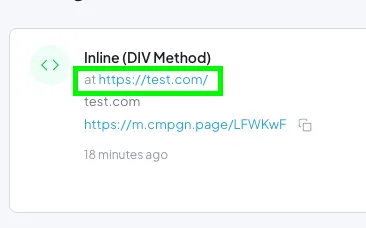
- The URL where the campaign is expected to be embedded is listed first in the info pane.
Add the domain to the connected site
If the URL differs from the page you're testing, add that page's domain to your connected site.
-
Open the settings for the publication by clicking the gear icon.
-
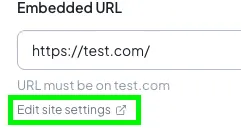
Click the small text Edit Site Settings. This takes you to the connected site settings.
-
Add the missing domain (for example, your staging domain) to the domain list. Save and exit.
-
Refresh your page. Your campaign should now display.
Blank or blocked for some viewers only
The campaign loads for you, but colleagues, a client or everyone in one office sees a blank box or a "refused to connect" error.
Cause: a firewall or network filter, common on company networks, is blocking ShortStack's domains. A browser extension can do the same for one person.
Fix: have someone who sees the problem open the page on their phone using mobile data, not Wi-Fi, and in a different browser.
- If it loads on mobile data, the network is blocking it. Send their IT team Whitelisting ShortStack's domains, which lists every domain to allow.
- If it loads in another browser, an extension is blocking it. Ask them to disable extensions or try a private window.
Nothing appears where the campaign should be
There's no error, just empty space or your page as normal. Check these in order:
- The campaign isn't published as an embed on this page. Open the Publications Manager and look for an inline embed publication with this page's URL. If there isn't one, click Publish Campaign, select Embed Inline and follow the wizard.
- The global embed script isn't on your site. Every site needs ShortStack's global embed code installed once. In the Publish Wizard, click Validate to check it. See How to install our global embed code (2.0).
- Only the
<div>was pasted. The<div>marks where the campaign goes; the script is what loads it there. If you chose Install on Each Page, ShortStack gives you two snippets: paste the<div>where you want the campaign and the script directly below it. One without the other shows nothing. - Your site's Content Security Policy blocks the script. If the script is installed and validated but nothing loads, your site may send a Content Security Policy (CSP) header that blocks it. Ask your web team to add
*.lndg.pageto thescript-srcdirective. - There are two sets of ShortStack code on the page. Remove all ShortStack code, publish your site, then add back only the code the Publish Wizard shows now.
- Your site changes aren't live yet. Publish your site changes, then clear any site, plugin or CDN cache. The page itself must be live, too — ShortStack can't embed on a page that returns "page not found".
The form or part of the campaign is missing
The campaign loads, and you can see everything in the Campaign Builder, but the form or a section is missing on the live page. Or, before the contest opens, the embed is empty.
Cause: the widget, or a container it sits in, has Visibility dates that don't include the current time. A form set to stop showing on a date disappears after that date, and a container set to start showing later stays hidden until then. Visibility settings apply on the live page, not in the Builder.
Fix:
- In the Campaign Builder, hover over the widget or container and click its clock icon to open the Visibility settings.
- Remove the dates, or change them to when you want it to show.
- Click Publish Changes.
If the campaign shouldn't be open yet, keep the dates and add a container that's visible now and hidden once the contest starts, with a Text Widget saying something like "Contest opens soon". Visitors then see a message instead of an empty space. See Widget visibility.
Big gap below, cut off, or wrong on mobile
The campaign shows, but there's a large blank space under it, the bottom is cut off, or it looks wrong on phones while desktop is fine.
Cause: the campaign is embedded with an <iframe> code. An iframe has a fixed height written into its code (for example, height:1744px), so it doesn't resize to fit the campaign or the screen. When the campaign is shorter than that height you get a gap; when it's taller — often on a phone — the bottom is cut off.
Fix: replace the iframe with the <div> and script, which resize automatically and need nothing extra for mobile.
- Open the Publications Manager and click the gear icon on the publication.
- Uncheck I don't want to use the embed script. Use iframe code instead (iframe height is fixed).
- Copy the new code. Always copy it after changing this setting, rather than reusing code you copied earlier, so the campaign has full functionality. On your page, replace the
<iframe>code with the<div>, and paste the script directly below it. If your site already has the global embed code, you only need the<div>. - Publish your site changes and check the page on a phone.
If your site can't run scripts at all, the iframe is the only option, and its height stays fixed. See Can't add a script to your site?
Other iframe problems
The iframe embed causes these problems too. The fix for each is the same: switch to the <div> and script, as in the steps above.
- A Scroll to Item action does nothing. The iframe's fixed height stops the page from scrolling to the item.
- The mobile layout shows on desktop. Some website builders, WordPress in particular, remove the width from iframe code. The campaign then thinks it's on a narrow screen. Pasting the iframe code into your page again can fix it, but the
<div>and script are more reliable. - A video plays without sound. A video that plays with sound on the landing page can play muted inside an iframe embed.
Buttons or scrolling don't work inside the embed
Buttons, a Scroll to Item action or other scrolling work in the Builder preview and on the landing page, but not in the embed.
Cause: CSS on your website can change how the page scrolls around the embed. A common culprit is a rule that fixes the page height:
html, body {
  width: 100%;
  height: 100%; /* change this line to min-height: 100%; */
  overflow-x: hidden;
}
Fix: ask your web team to change height: 100% to min-height: 100% on html and body, then test again.
An entry pop-up runs off the screen
If an entry opened from a gallery (for example, a tall vertical video) extends past the visitor's screen, limit its height in the campaign:
- In the Campaign Builder, select the Entry Display Widget.
- In the Style Panel, open the Pop-up: Media section.
- Adjust Maximum Height, then save the Style Panel settings.
- Publish changes and test your embed.
Share links open the wrong page
When visitors share the campaign, the link takes people to an old page, a page that no longer exists, or somewhere other than the page where your campaign is embedded.
Cause: shares use the URL saved in the publication settings, not the address of the page the visitor is on.
Fix: open the Publications Manager, click the gear icon on the publication, change the URL to the exact page where the campaign is embedded, and save.
Slow embed load times
On the Scale plan, ShortStack can use Cloudflare Turnstile to block bots before they interact with your campaign. When it's turned on for embeds, it can slow down how fast the embed loads.
To turn it off for embeds:
- Open the Campaign Settings (gear icon) in the Campaign Builder.
- Click the Security tab.
- Uncheck Enable if my campaign is embedded. This option is unchecked by default.
If Turnstile is off, the slow load may come from your browser or network. To check:
- Test in a different browser.
- Test on a different network, such as mobile data.
- Disable browser extensions.
- Open the page in a private (incognito) window.
If any of these load faster, the cause is your own browser or network, and most visitors won't see the same delay.
Visitors see "Campaign not found"
Cause: the campaign has been unpublished. Every unpublished ShortStack campaign shows "Campaign not found" at its address.
Fix: to show visitors something else once a campaign ends, choose one:
| Option | How it works |
|---|---|
| Keep the campaign published | Add a Text Widget with Visibility set to show after the campaign ends, for example "This contest has ended". Set the form to stop showing at the same time. |
| Publish on your own custom domain | Unpublish when it ends, then redirect the address to another page in your domain settings. See Publishing your campaign using a custom domain. |
| Embed it on your website | Unpublish when it ends, and update your own page to say the campaign is over. |
Still not working
Email support@shortstack.com with the URL of the page where the campaign is embedded and a link to the campaign in the Campaign Builder. Those two links are what we need to investigate.
Related resources
How to install our global embed code (2.0) (Help Doc)
How to embed a campaign inline (2.0) (Help Doc)
Whitelisting ShortStack's domains (Help Doc)
Was this helpful?
Thanks — that helps us decide what to fix next.
Sorry this missed. Tell us what you needed and we'll get you an answer — and fix the page.